Revise a price after sending or a decision
Scope shifts, a supplier quote lands differently, or the office catches a mistake. A price revision replaces the pricing on an extra while preserving every prior version and every prior decision.
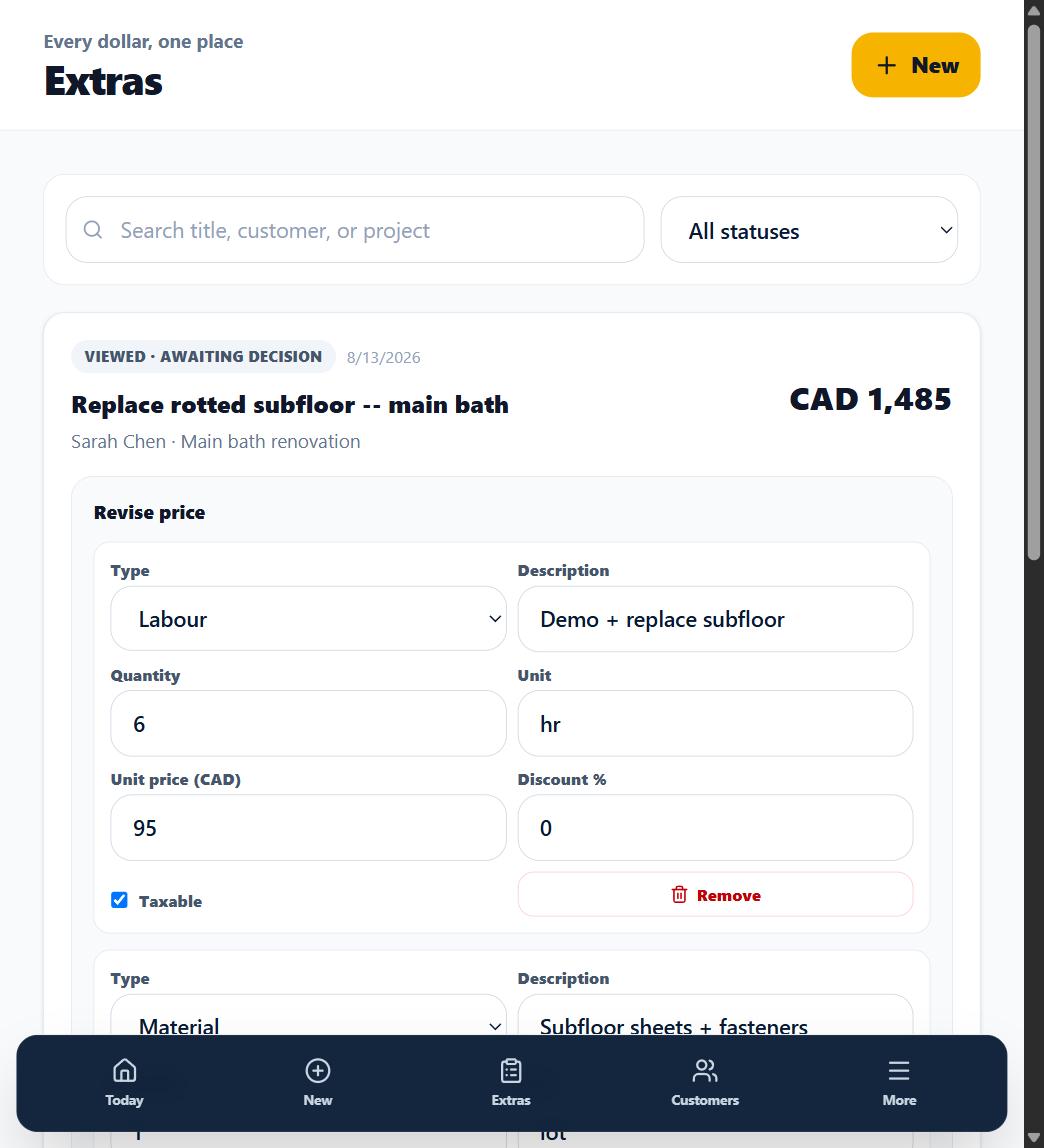
1. Open Revise price
On the Extras screen, open the extra and choose Revise price. The current line items load into an editor identical to the one you priced with originally. Revising price is limited to owner and admin roles, and only while the extra is not yet marked Billed -- once billed, correct your invoice or bookkeeping record directly instead.
2. Adjust the lines
Change, add, or remove lines. A live preview shows the new subtotal, discount, tax, and total before you commit.

Watch: change a price and see the new total before saving. 3. Save the revision
Saving creates a new linked price version. If an approval link was already out, it is revoked at that moment -- the customer can no longer approve the old price. If the customer had already decided, the extra's status becomes "Revised · was approved, needs new decision" or "Revised · was declined, needs new decision" depending on their prior answer, and the prior decision stays visible in the history.
4. Send the new version
Send a fresh approval request for the revised price. The customer decides on exactly what they can see -- never on a price that has since changed. On the Free plan, this does not use another one of your 2 free sends: the count only ever tracks each distinct extra's very first send, so any resend or reprice of an extra you have already sent is free.
What happens next
The full revision chain stays on the record: what was priced, what was decided, and when.