Start here: your first protected extra
OuttaScope does one job: when work outside the original scope shows up, you capture it, price it, and get the customer's decision in writing before the work quietly becomes free. Here is the complete loop, end to end.
1. Verify your email, then sign in
Signing up sends a verification email -- sign in with the email and password you just created, then click the link in that email to activate your workspace (see Fix sign-in problems if it does not arrive).
2. Finish workspace setup
After you create your account, OuttaScope asks for your business name and primary trade. The business name appears on every customer approval, so use the name your customers already know. Your workspace opens on the Free plan -- no credit card, no expiring trial.
3. Add the customer and job
Open Customers and add the customer. Add the job (project) either from the Projects screen in the sidebar, or inline while you capture the extra -- pick the customer in New Extra's "Who is this for?" step and a + New project button appears. Set up each customer and job once, then reuse them for later extras -- a customer with several active sites just gets a job added for each one.
4. Capture the extra
Tap New Extra. Give it a clear title, describe the work, say why it is outside the original scope, and add photos if you have them. Add price lines or leave pricing for the office -- both are fine.
5. Send it for approval
When the extra is ready, send the approval request. Your customer gets a private link -- no account or password needed on their end -- where they can approve or decline. Their decision is recorded automatically with the exact date and time.
6. Bill it and get paid
Once approved, the extra shows as Approved · not billed. Mark it billed when it goes on an invoice, then paid when the money lands. Export everything as CSV for your bookkeeper whenever you want.
What happens next
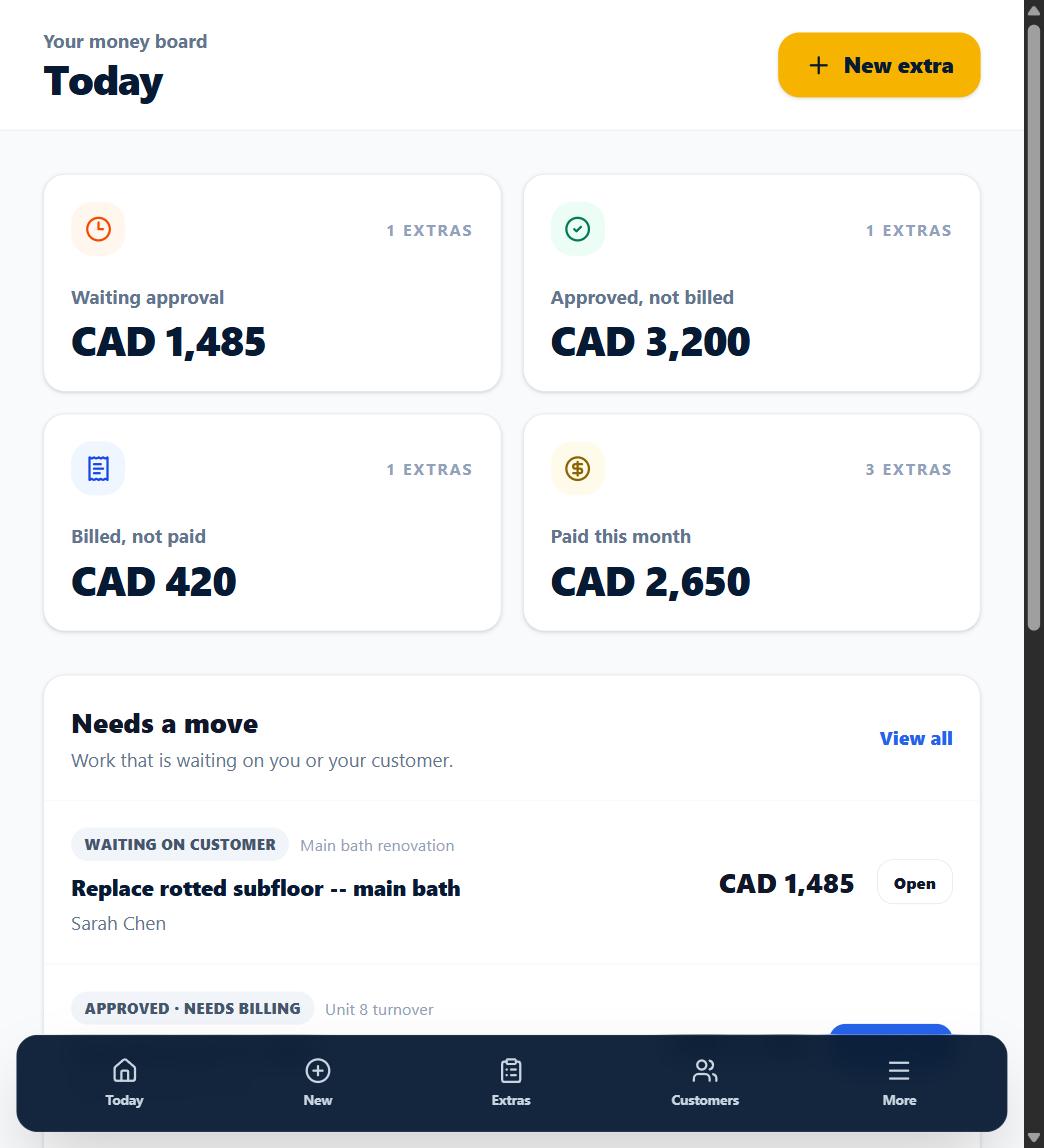
The Today screen becomes your daily home base: it shows every extra, its current status, and the money attached to it.